Skip to the content
FuseBase FuseBase
  • Why FuseBase

    Why FuseBase
    Book a demo with our experts to build your custom workflow
    • Solutions

      Solutions
      Solutions
      AI-powered Portals for teams, clients, partners

      One place to collaborate internally and externally

      CLIENT PORTALS
      DEAL ROOMS
      PARTNER PORTALS
      ONBOARDING PORTALS
      Solutions

      Recognized by leading product platforms

      Multiple awards for ease of use, customer satisfaction, and enterprise-grade security

      Mid-Size Companies

      Growing 50–1000+ Employee Companies

      Professional Services

      Get one-stop-shop for collaboration

      Agencies

      Align teams and clients in one branded space

      Consultants & Coaches

      Deliver exceptional client service

      Wedding and Events

      Stress-free way to organize events

      Book a demo with our experts to build your custom workflow
    • Pricing
    • Resources

      Resources
      Blog

      Read the latest collaboration tips

      Guides

      Answer your FuseBase questions

      Roadmap

      See what waits for you in the future

      Templates

      Save time on creating all from scratch

      Affiliate partners

      Find new opportunities and benefit with us

      Webinars & eBooks

      Expand your knowledge of client collaboration

      Media Kit

      Get the assets to mention and refer to our brand

      Contact us

      Get growth advice from our experts

      Book a demo with our experts to build your custom workflow
      • Book a demo Get Started Free
      • Book a demo with our experts to build your custom workflow
      • Sign in
      • Book a demo
      • Get started for free
      Categories
      • All articles
      • Best Practices & Templates
      • Client Relationships
      • Knowledge Base
      • Personal Productivity
      • Super Documents
      • Teamwork
      • Updates and News
      TEST BANNER
      • Home
      • Blog
      • Best Practices & Templates...
      • How to record internal audio and screen on Windows
      Best Practices & Templates

      How to record internal audio and screen on Windows

      • by Dildora Rozikhodjaeva
      • January 24, 2022
      • 4 Min read

      Now we are all digital ninjas. We can record screencasts with one hand and make sandwiches with another. But when it comes to system audio recording, many applications can let us down.

      Let’s say you make presentations to explain project details or want to give a review on webinars. Or maybe you make your own content such as vlogs, documentaries, video tutorials, radio shows or podcasts. Do you want to record desktop audio for your content on Windows?

      Now anything that’s coming out of a browser, video call interviews, live streams, conference calls, video games and any other program can be captured with Nimbus Capture. Just use the system audio option.

      So what is this scary “system audio” like? And how do you record internal sound?

      All answers are in the article. Let’s get the ball rolling!

      What does record system audio mean?

      System audio refers to any sounds from your computer such as program notifications, videos, music, calls, and so on. When you capture sound from videos played on your computer that means you record system audio. Some typical internal audio recording software may only have microphone recording and may lack a system audio option.

      To record a video or screencast with your system audio, try Nimbus Capture. There’s a desktop version of the app for audio capture. With Nimbus Capture, you’ll get recordings with good quality and no disturbances.

      When do you need to record internal sound?

      Nimbus Capture system audio comes in handy for meetings, webinars, podcasts, and so on. Record parts of video or audio materials and give reviews on them on Windows. System audio will care about capturing all sounds coming from your computer.

      Record your screen and internal sound during meetings to enhance your work. However, make sure you don’t infringe copyright. Ask your colleagues if they don’t mind meeting recording and do not distribute any content without permission.

      How to record system sound from a computer?

      1. Download the Windows version of Nimbus Capture here >>. Register or log in to your Nimbus account.

      Register or log in to your Nimbus account.
      2. You’ll see a small window on your screen. Go to the settings and choose preferences.

      Small window on your screen
      3. To record sound on the computer, tick “Capture system audio” and quit the menu.

      Capture system audio
      4. Click on the icon in the middle or use the hotkeys CTRL+ALT+4

      icon in the middle
      Here you’ll see short instructions on how to work with Nimbus Capture. It is a perfect solution for your business collaboration. Apart from simple recording, you can explain your ideas, give reviews, and more using annotated screenshots & videos.

      Short instructions on how to work with Nimbus Capture

      5. Then, choose the screen area for recording internal audio on a computer and click on the icon or use the hotkeys CTRL+ ALT + L to start.

      6. Once you finish your video screen recording with system audio, name it and choose where to store it. There are two options:

      • uploading your recording to your Nimbus Note account. There, you can attach anything (files, images, tables and so on) to pages with recording.
      • save the file on your computer.

      And what if I need more than just a video?

      Imagine you have a very important video call. Your clients want to discuss their project. To not miss any details, you ask for an agreement to capture your meeting using Nimbus Capture Windows version with system audio.

      After the meeting, there are lots of ideas in your head. You’d love to discuss them with your team. However, it seems sending just a video with system sound and your microphone sound is not enough. You want to add a bunch of files and comments.

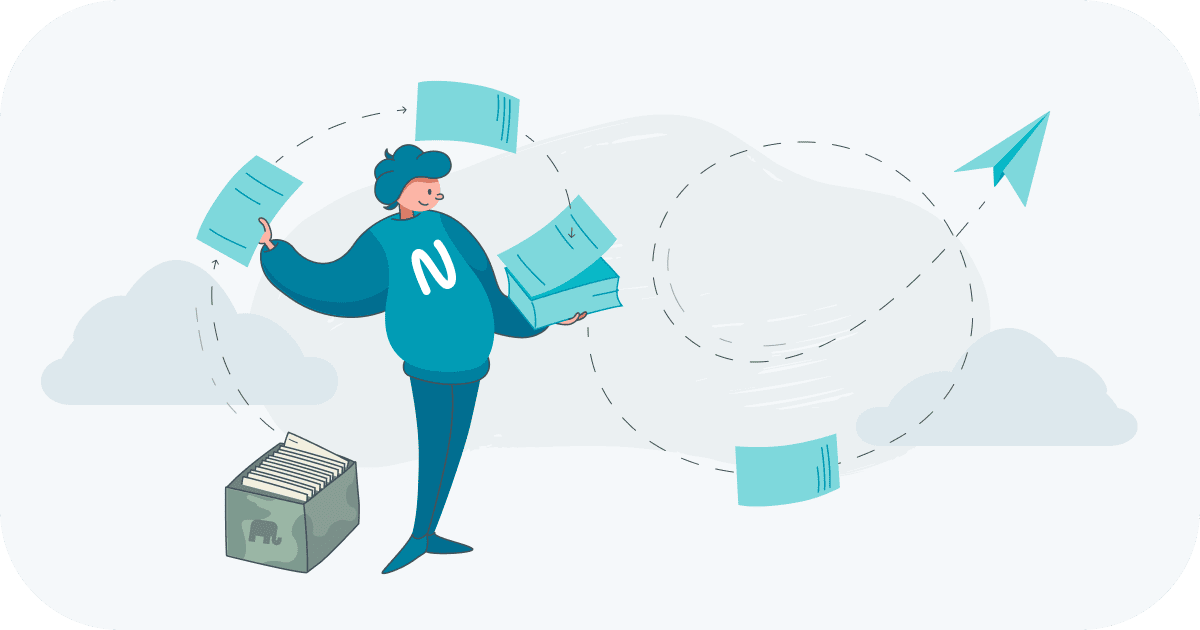
      Use Nimbus Note for that. Create a perfect library for your screenshots & videos and attach any content to your uploads and more:

      • Structure your information according to types of projects, data, and so on with different folders;
      • Divide responsibilities and organize them in tables;
      • Add content from other websites using embeds and more!

      You can always clip your emails or the most essential content from the Internet and send it to Nimbus Note. Nimbus Clipper will help you save only interesting extracts from different websites.

      Now storing and organizing references for your projects is so much easier.

      Try all Nimbus solutions to enhance your collaboration & productivity
      Learn more

      Related Articles

      Getting Organized with Nimbus Note
      Best Practices & Templates

      Getting Organized with Nimbus Note

      • by kuzmasaf
      • 7 Min read
      Exporting Your Notes From Evernote
      Best Practices & Templates

      Exporting Your Notes From Evernote

      • by kuzmasaf
      • 5 Min read
      Learn how to make screenshots and recordings more professional
      Best Practices & Templates

      Learn how to make screenshots and recordings more professional

      • by kuzmasaf
      • 7 Min read
      How to Work with Clients Better: Templates from Selle Evans
      Best Practices & Templates

      How to Work with Clients Better: Templates from Selle Evans

      • by Dildora Rozikhodjaeva
      • 5 Min read

      Dildora Rozikhodjaeva

      Found it useful? Share the article with your community

      • Share on Facebook
      • Share on LinkedIn
      • Share on X

      Related Articles

      Getting Organized with Nimbus Note
      Best Practices & Templates

      Getting Organized with Nimbus Note

      • by kuzmasaf
      • 7 Min read
      Exporting Your Notes From Evernote
      Best Practices & Templates

      Exporting Your Notes From Evernote

      • by kuzmasaf
      • 5 Min read
      Learn how to make screenshots and recordings more professional
      Best Practices & Templates

      Learn how to make screenshots and recordings more professional

      • by kuzmasaf
      • 7 Min read
      How to Work with Clients Better: Templates from Selle Evans
      Best Practices & Templates

      How to Work with Clients Better: Templates from Selle Evans

      • by Dildora Rozikhodjaeva
      • 5 Min read
      Subscribe to our blog!

      Get weekly tips and insights on how to grow your business

      Our solutions
      • Client Collaboration
      • Project Management
      • Knowledge Management
      • Data collection
      • FuseBase AI
      • Agencies
      • Consultants & Coaches
      • Nimbus Portals
      • Nimbus Note
      • Nimbus Capture
      • Nimbus Clipper
      • White Label
      Plans & Pricing
      • Pricing
      • Affiliate partners
      Company & Contacts
      • Templates
      • Blog
      • Guides
      • Roadmap
      • Media Kit
      • Contact us
      Compare with
      Fusebase Logo
      • English
        • Deutsch (German)
        • Türkçe (Turkish)
      FuseBase - Client collaboration platform for professional services | Product Hunt
      • g2
      • sourceforce
      • g2
      2014-2026 FuseBase is a product of Nimbus Web Inc., a Delaware company

      Get a Sneak Peek on Managing Your Projects

      Watch how you can boost your results by setting workflow with Nimbus Platform

      Book a demo
      Get started

      Unlimited time on Free plan

      This site is registered on wpml.org as a development site. Switch to a production site key to remove this banner.